In a company that runs on Microsoft 365, the right answer almost always exists. It's in the Word file in the Policies folder, in the pricing Excel that Sales updated on Tuesday, in the PowerPoint from the new product training. When you put an AI Agent to work answering questions, the problem is rarely missing information: it's that the information lives in SharePoint and the agent reads something else, a copy someone uploaded by hand three months ago.
That copy is the weak point of almost any AI project in a large company. The document changes in SharePoint, nobody remembers to update the agent's base, and the agent keeps confidently answering something that's no longer true: the old price, the previous policy, the procedure that was replaced. For the customer or employee asking, an outdated answer given with confidence is worse than no answer at all.
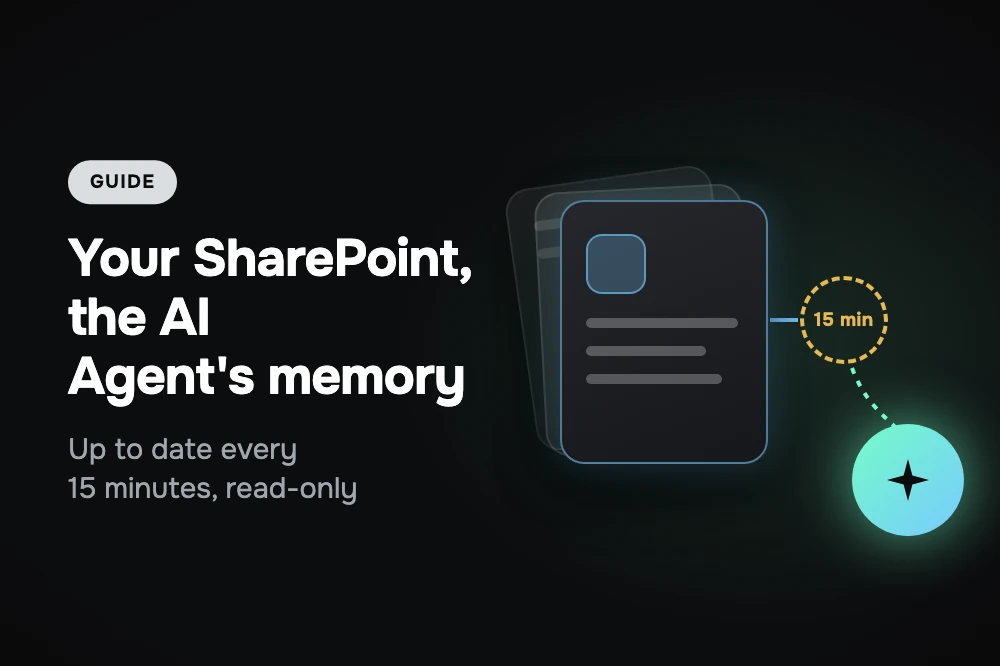
AsisteClick solves this by connecting the AI Agent directly to SharePoint libraries. Each connected library becomes a knowledge base that syncs itself every 15 minutes, in read-only mode: the team keeps working in SharePoint as always and the agent answers with the latest version of each document. We use it ourselves: the AI Agent that handles AsisteClick's first-level support reads our more than one hundred help guides from a SharePoint library, and after every release it answers with the new guides without anyone uploading a file to the platform again. This guide explains how it works, what IT will ask and how to design it so the agent answers well.
Table of contents
- The problem isn't the AI: it's the copy
- How it works: one library, one knowledge base
- What IT is going to ask
- The most important decision: which library to connect
- How the AI Agent decides where to look
- Which files it reads, and what to do with scans
- The quota: 1,000 documents and 30 MB of text
- How to know whether the base works for the agent
- The rest of the Microsoft ecosystem
- How to get started
- The summary
- Keep reading
The problem isn't the AI: it's the copy
An AI Agent answers with what's in its knowledge base. If the base is right, it answers right; if the base is old, it answers wrong with the same confidence. That's why the quality of an agent that answers about policies, products or procedures depends less on the model than on a simpler question: who keeps what the agent reads up to date?
With a base loaded by hand, the answer is usually "nobody in particular". The document owner —HR, Sales, Quality— updates it in SharePoint, which is where they work. Uploading the new version to the bot platform is someone else's task, in another system, that nobody asked them to do. That's how two sources of truth appear, and the agent's is always the one that loses.
Connecting SharePoint removes the second source. The documentation has a single owner and a single place; the agent inherits every change in the next cycle. You don't need a process to keep the base up to date, because the base isn't a copy to maintain: it's a mirror of the library.
How it works: one library, one knowledge base
SharePoint organizes documents in a fixed hierarchy, and the connector respects it. Each connection corresponds to your company's Microsoft 365; inside it, you choose a site, and within the site, the document libraries the agent will be able to consult. Each connected library becomes a knowledge base, created with the same name, that appears in the AI Agent builder like any other.
From the connection on, the base maintains itself. Every 15 minutes the platform checks what changed in the library: new files come in, modified ones are updated and deleted ones also disappear from the base. If a change can't wait for the next cycle —a price that was corrected, a policy that takes effect today—, the Sync now button brings it in on the spot.
The connector screen shows one row per library with its status (Syncing, Up to date, Paused, No quota or Error), the number of documents, the summary of the last run —how many came in, how many were updated, how many were removed— and how many AI Agents use that base. In a large library, the first load shows the progress ("290 of 1,310") while the rest of the platform keeps working. And if something fails on Microsoft's side, the agent doesn't go blank: it keeps answering with the last thing that was synced.
What IT is going to ask
In a large company, connecting anything to SharePoint goes through IT, and it's good that it does. These are the questions that always come up, and their answers:
| The question | The answer |
|---|---|
| Can it write or delete anything in our SharePoint? | No. The integration is read-only by design: it never writes, moves or deletes anything. The app requests only two read permissions, and it can be verified in your own Microsoft Entra portal. |
| What permissions do we need to grant? | An app registered in Microsoft Entra ID with Sites.Read.All and Files.Read.All, of type Application, with admin consent. If the company already connected Microsoft Teams as a channel, that same app can be reused. |
| Are our files stored outside Microsoft? | The original file isn't: it's read, the text is extracted and the file is discarded. The text is indexed, because it's what the agent consults to answer, just like with any knowledge base. The source and control stay in SharePoint. |
| Can we limit which sites it accesses? | Yes. With a restricted permission such as Sites.Selected, the site list doesn't appear and you paste the URL of the authorized site directly. And within the site, only the libraries someone connected are read. |
| What about documents with a sensitivity label? | Those with a label that encrypts the content aren't read: they stay in the list of omitted files, with the reason. |
| What happens when the app secret expires? | Microsoft makes secrets expire (at most, after two years). That day the sync stops and the agent keeps answering with the last synced content, until a new secret is loaded. |
| We have more than one tenant. | Several can be connected: each connection is managed and removed separately. |
The first row is the one that unlocks the conversation. Read-only access isn't a promise in a contract: it's in the app's permissions, and whoever administers Microsoft 365 can check it themselves.
The most important decision: which library to connect
There's a detail of the connector worth understanding before choosing anything: SharePoint's internal permissions don't travel to the agent. In SharePoint, a document may be visible only to HR; once its library is connected, all its content can appear in the agent's answers, for anyone who talks to it. Connecting a library is publishing its content to that agent's audience.
That's why the recommendation is a dedicated library for each agent, with content written for its audience, instead of connecting working libraries, which mix drafts, old versions and internal material. In practice, that usually means two or three libraries:
- One for the agent that serves customers: current commercial terms, product manuals, FAQs, warranty procedures. Nothing a customer can't read.
- One for the internal help desk agent: HR policies, IT procedures, benefits. That agent serves employees, and it should verify who's on the other side before answering; we cover that further down.
- One per area, if the volume justifies it: separating Sales from Technical Support helps the agent choose where to look, as explained in the next section.
The advantage of each library being a base is that the design is decided in SharePoint, with tools the team already knows. Moving a document from one library to another moves it to another base. And the connection wizard helps avoid mistakes: the Documents library SharePoint creates by default, which is almost always empty, appears disabled.
How the AI Agent decides where to look
An AI Agent can have several active bases at once. For each question, it decides which one to search by reading the instruction of each base: a short text that says when to use it and what it contains. It's the piece with the most influence on answer quality, and the least visible. In SharePoint bases, documents aren't edited from AsisteClick —they're edited in SharePoint—, but the title and the instruction are, from each library's row.
An instruction that works has three parts: when to use it, what it contains and, if there are similar bases, when not to use it. For example:
Use for employee questions about leave, vacations,
benefits and schedules. Contains the current HR policy
and the internal regulations. Do NOT use for customer questions.
Three common mistakes: describing the list of files instead of the topic ("contains politica_2026_v3.docx"), writing instructions so similar across bases that the agent can't tell them apart, and leaving it empty when there are several bases —a base without an instruction is always consulted—. If the agent searches the wrong base, the fix is almost never in the model: it's in these two or three lines.
One last adjustment lives in the agent's general instructions: if you want it to say where each answer comes from ("according to the current travel policy…"), ask for it there. For an internal help desk it's usually worth it, because the employee knows which document to go to if they need the full detail.
Which files it reads, and what to do with scans
The connector reads the formats in which a company's documentation usually lives on Microsoft 365:
| Synced | Omitted |
|---|---|
| Word (.docx) | Office 97-2003 formats (.doc, .xls, .ppt) |
| Excel (.xlsx), all sheets | Scanned PDFs, in standard mode |
| PowerPoint (.pptx) | Images, videos and archives |
| PDFs with selectable text | Files over 40 MB |
| Plain text: .txt, .md, .csv | Documents with a sensitivity label that encrypts the content |
What's left out doesn't disappear silently: each library has an Omitted list with the reason for each file, separating what the team can fix —an old .doc that just needs to be saved as .docx, a scan— from what's expected, like a stray image.
Scanned PDFs and your own Azure
Many companies have important documentation that's scanned: signed contracts, old forms, procedures someone printed and digitized. A scanned PDF is a photo of a document, with no selectable text, and the connector's standard mode doesn't read it.
That's what a second reading mode is for. In each connection's settings you choose who extracts the text from the files:
- AsisteClick (the standard mode): the text is extracted on AsisteClick's servers, with no third parties involved. It reads Word, Excel, PowerPoint, digital PDFs and plain text, and requires nothing else.
- Your own Azure: the document goes from your SharePoint to your Azure AI resource without passing through AsisteClick, which receives only the resulting text. It adds reading of scanned PDFs, complex tables and diagrams. It requires your own Azure AI Foundry resource, and Microsoft bills the processing cost to your subscription.
For a company that already works with Azure, the second mode has an advantage that goes beyond scans: documents are read inside its own cloud, with its own resource. If the library has no scans, on the other hand, it isn't needed: the standard mode already reads digital documents. Switching modes doesn't resync everything; it applies from the next run on.
The quota: 1,000 documents and 30 MB of text
With SharePoint, an account can go from a dozen documents to thousands without noticing. That's why knowledge bases have a per-account limit of 1,000 documents and 30 MB of indexed text, adding up bases loaded by hand and SharePoint ones. Thirty megabytes of text is a lot: on the order of ten thousand pages of running text, because what counts is the extracted text, not the size of the files.
Usage is always visible, not just when it fills up: the stats line shows, for example, "233/1000 documents", and turns amber at 90% and red at the cap. When the limit is reached, the sync doesn't break: what doesn't fit is listed as omitted for quota and everything already loaded keeps working. If the account needs more, the Request a quota increase button opens the request and an advisor coordinates it.
Beyond the number, the quota pushes toward good design. A base with a thousand uncurated documents answers worse than one with two hundred written for the agent: the search has more noise to choose from. The dedicated library we discussed earlier isn't just a permissions matter; it's also a quality matter.
How to know whether the base works for the agent
Connecting the library is the beginning. What really shows whether the base works are the real questions, and you see that in AI Observability, in the section dedicated to the knowledge base:
- Documents that were never used: the AI didn't retrieve a single fragment of them in the period. Either they don't cover what people ask, or they're written in a way the search doesn't find.
- Searches with no result: how many times the agent went to search the base and came back empty-handed. A high percentage means missing content, not a technical problem.
- Knowledge gaps: the concrete list of topics people ask about that the base doesn't answer well, with the most repeated first.
- Usage per document: the series of queries for each document, which tells apart one that's used less and less from one that suddenly stopped being used.
With SharePoint, the improvement cycle stays where it belongs. If the most repeated gap is "travel expense reimbursement", whoever owns that policy writes the missing section in the SharePoint document, and the agent has it in the next cycle. Nobody copies anything anywhere: the improvement comes in through the same place everything else does.
The rest of the Microsoft ecosystem
SharePoint is usually the first piece, but a company that runs on Microsoft 365 has others that connect to the same AI Agent:
| Microsoft piece | What it does in AsisteClick |
|---|---|
| Microsoft Teams | One more service channel: people in the organization write to the agent from Teams and the conversation reaches the same inbox as the rest. |
| The corporate Microsoft account | In web chat, the agent can ask the person to sign in with their Microsoft 365 account before writing. The conversation is tied to a real identity, not a name typed by hand. |
| Microsoft Entra ID | The app registered for Teams also works for SharePoint, and the support team can sign in to AsisteClick with their corporate account. |
| Azure AI | The connector's Your own Azure mode, to read scans with the company's resource. |
Together, these pieces enable something many companies are looking for: an agent that serves employees in the channel where they already work, asks them to identify themselves with their corporate account and answers with the current internal documents. And it doesn't have to be only outward-facing: the team's Copilots also consult the knowledge bases, so the same library can help whoever's handling a conversation look up a policy in the middle of it.
How to get started
Connecting SharePoint takes 20 to 30 minutes if the Microsoft Entra app already exists. You need:
- The IA Plus plan: SharePoint feeds the AI Agents that serve, and it's enabled with that plan. The details of each plan are in plans and pricing.
- The Bot and AI agent builder permission in AsisteClick.
- An app registered in Microsoft Entra ID with the two read permissions and admin consent, or the Teams channel one, if it already exists.
The steps:
- In Setup → AI Agents and bots → SharePoint, click Connect SharePoint and paste the app's credentials. AsisteClick verifies them against Microsoft before saving. The most common mistake in this step is copying the Secret ID instead of its Value.
- Choose the site and the libraries. Each one shows how many files it has, and the first sync starts right away.
- Write the instruction for each base: when to use it, what it contains and when not to.
- In the AI Agent builder, in the Knowledge bases section, check the bases it should consult.
- Test it with real questions and, after a few days, look at AI Observability to see what it's missing.
If you'd rather not do it alone, our team takes care of it: we coordinate the app registration with your IT team, define with you which libraries to connect and with what instructions, and leave the agent tested with the real questions of your operation. You can see more on the page for SharePoint + AsisteClick.
The summary
In a company that runs on Microsoft 365, the knowledge is already written and already has an owner: it lives in SharePoint. An AI Agent that reads a copy of that knowledge starts getting things wrong the day someone updates the original. Connecting it directly to the libraries, read-only and synced every 15 minutes, changes that: the agent answers with the current version, IT controls exactly what it can read and each document's owners improve it where they always worked. The AI brings the conversation; SharePoint, the truth.
Frequently asked questions
How do you connect an AI Agent to SharePoint?
In AsisteClick, with the SharePoint connector: you register an app in Microsoft Entra ID with read permissions, choose the site and the libraries, and each library becomes a knowledge base the AI Agent consults. The base syncs itself every 15 minutes.
Can AsisteClick change or delete anything in my SharePoint?
No. The integration is read-only by design: the app requests only the Sites.Read.All and Files.Read.All permissions, and it can be verified in the Microsoft Entra portal. Disconnecting a library deletes the base in AsisteClick; the files in SharePoint stay intact.
Does the agent respect SharePoint permissions?
No. Everything in a connected library can appear in the agent's answers, regardless of who could see it in SharePoint. That's why it's best to connect dedicated libraries, with content written for each agent's audience.
How often is the knowledge base updated?
Every 15 minutes: new files come in, modified ones are updated and deleted ones disappear from the base. If a change can't wait, the Sync now button brings it in on the spot.
Which files does the connector read?
Word (.docx), Excel (.xlsx, all sheets), PowerPoint (.pptx), PDFs with selectable text and plain text (.txt, .md, .csv), up to 40 MB. Office 97-2003 formats, images, videos and documents encrypted by a sensitivity label are omitted, with the reason shown.
Does it read scanned PDFs?
Not in standard mode. With the Your own Azure mode, the document is processed with the company's Azure AI resource, which also reads scans, complex tables and diagrams; AsisteClick receives only the text and Microsoft bills the processing cost.
Which plan do I need?
The SharePoint connector is enabled with the IA Plus plan. Knowledge bases loaded by hand are available from the Company plan.
Keep reading
- The 3 knowledge layers of an AI Agent — where the knowledge base fits next to the prompt and the interactions
- Copilots: the AI that works for your team — the same base, serving whoever handles the conversation
- Why AI agents fail in customer service — the process mistakes, starting with a base nobody maintains
- Decisions: rules your AI Agent follows even when the model won't — for what can't depend on what a document says